|
Note |
|
You must have the 4.13 Customer Credits & Reports permission to view certain house account data sourced from the Guestbook feature. For more information, see Access Your Guest Data With Guestbook. |
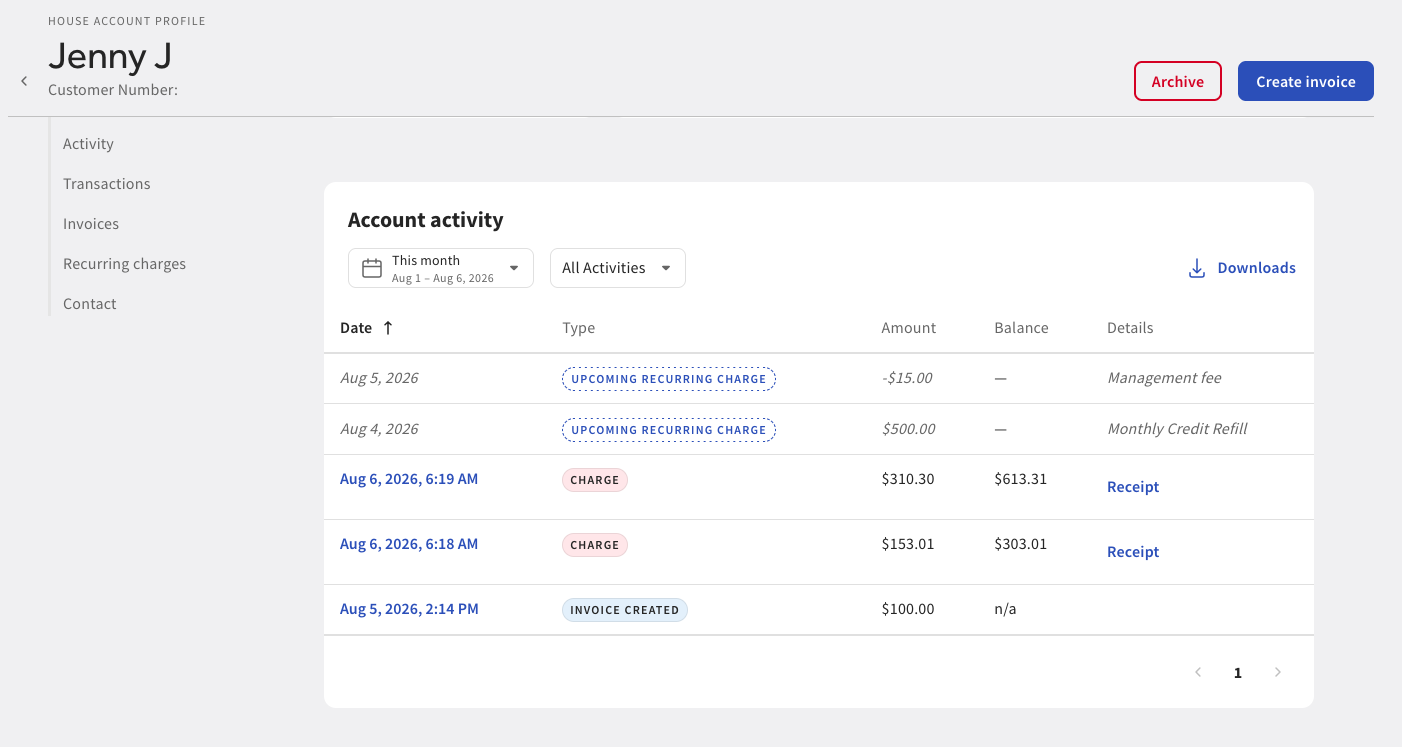
You can view the details of a house account on the House account profile page in Toast Web. Go to Finance > Payments > House accounts > Accounts to open the House account profile page. On the House account profile page, you can:
-
Create an invoice
-
Archive the house account
-
View house account details
-
View a list of activities on the house account
-
View the contact information for the house account owner
-
Adjust the outstanding balance
Note
You can only add credit to reduce a house account's outstanding balance. You cannot increase the amount due on a house account.
The House account profile page has five links on the left navigation. You can select a link to quickly navigate to the section.
In the Overview section, you can:
-
View house account details
-
Adjust the house account's outstanding balance
Note
If the outstanding balance is a positive amount, that is the balance owed on the account. A negative balance is credit on the account.
-
View the year the house account was created
-
View lifetime spend
Note
The lifetime spend is the amount the guest has spent at the location. Lifetime spend is linked to the guest phone number and not the house account.
-
View the number of orders linked to the house account
-
Add and save a payment card to the house account. You can also choose to replace an existing saved card or remove a saved card from the house account.
Note
Saved cards can only be used to pay bulk invoices. For more information, see Creating bulk invoices.
In the Overview section, you can edit the house account owner’s information. To edit owner information, select the edit icon (pencil). This opens the Edit house account page. From the Edit house account page, you can edit:
-
Guest name, email address, phone number, and customer number
-
Guest address
|
Note |
|
You can only add credit to reduce a house account's outstanding balance. You cannot increase the amount due on a house account. |
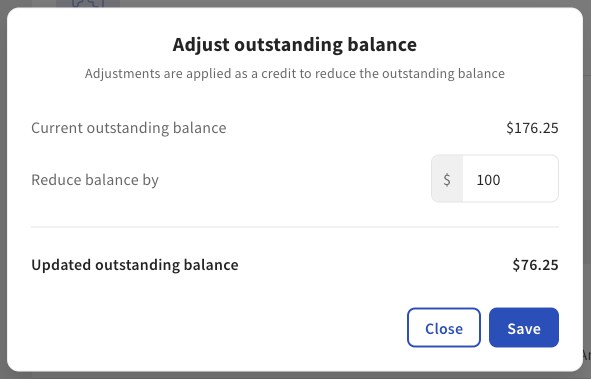
In the Overview section, you can also adjust the outstanding balance of a house account. Select the Adjust balance link next to the outstanding balance to open the Adjust outstanding balance dialog. In the Adjust outstanding balance dialog, you can choose to either:
-
Set a new outstanding balance
-
Reduce the outstanding balance
Select your option and in the numerical field, enter the new outstanding balance or the amount to reduce the outstanding balance. The amount must be a positive number. The dialog displays the updated outstanding balance for you to confirm and save. For example, if a house account has a balance of $397.00, you can adjust (reduce) the balance by $200. This creates an ADJUSTMENT activity and adjusts the house account outstanding balance to $197.00.
Optionally, you can also add a note for accounting purposes. The note appears on the Account activity table on the House account profile page.
|
Note |
|
An invoice cannot be created for an ADJUSTMENT. |
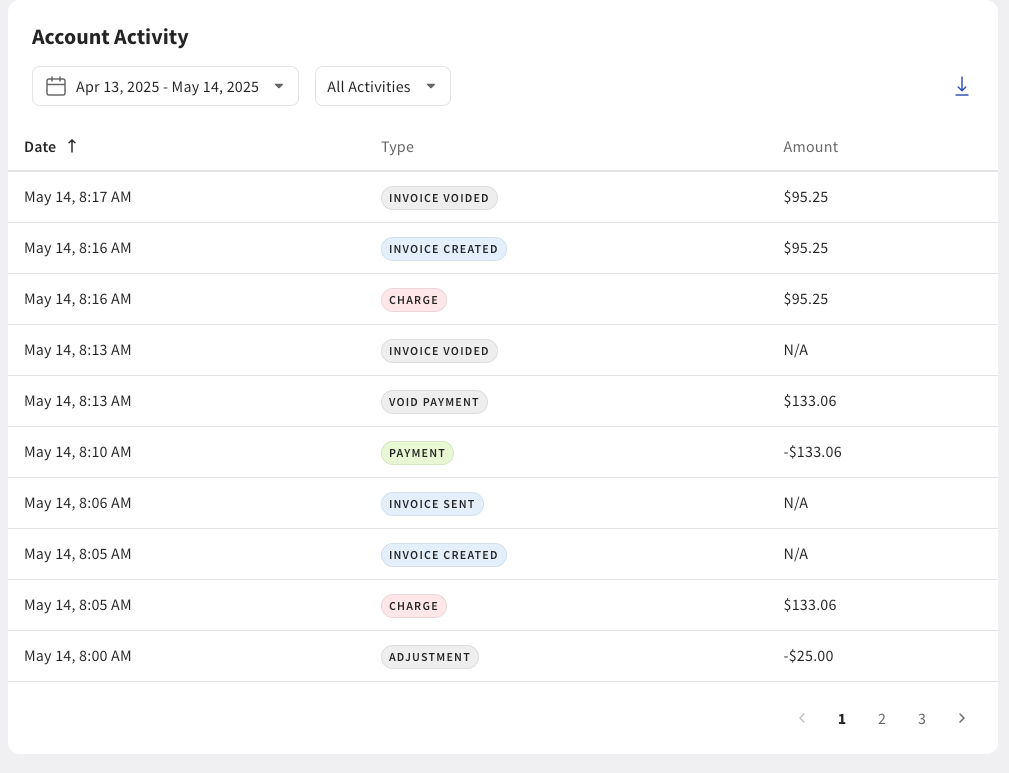
In the Activity section, you can:
-
Search for activities using the date picker or the All activities filter
-
View activities by date and time
-
View activities by type. Activity types are:
-
TRACKED SALE: An order linked and tracked to a house account, but not paid for with a house account. A TRACKED SALE does not affect the house account balance.
-
CHARGE: An order was charged to the house account.
-
PAYMENT: A payment was applied to the house account. Payments made to house accounts cannot be refunded.
-
VOID CHARGE: A charge to the house account was voided.
-
VOID PAYMENT: A payment to the house account was voided.
-
ADJUSTMENT: A manual adjustment to the outstanding balance of the house account. The adjustment must be a positive amount. You can only manually reduce the outstanding balance, not increase the balance owed.
-
INVOICE CREATED: An invoice was created.
-
INVOICED VOIDED: An invoice was voided.
-
INVOICE SENT: An invoice was sent to the email address on the house account.
-
-
View transaction amount
-
View house account balance history
-
View and open order receipts
-
Download account activity
-
Detailed report: A report of all charges, including transaction details for the date range specified. This report does not include house account payments.
-
Activity table: A report of the activity on the account. This report is an export of the Account activity table.
-
In the Transactions section, you can view the details of the transactions charged to the house account:
-
Transaction ID
-
Date and time of the transaction
-
Type of transaction
-
Transaction amount
-
Transaction balance
-
(Optional) Invoice number
In the Invoices section, you can view the statuses of your invoices and other details:
-
Creation date and time
-
Due date
-
Invoice amount
-
Invoice number and link to the invoice
-
Invoice status. Invoices have one of the following statuses:
-
PAID: The invoice has been paid.
-
OPEN: The invoice has been created and sent.
-
DRAFT: The invoice has been created but not sent.
-
In the Recurring charges section, you can create a new recurring charge, view details about your recurring charges, and assign charges to house accounts:
On the Recurring charges page, select the Create charge button to open the Create recurring charge dialog.
To create a recurring charge
-
In the Create recurring charge dialog, complete the following:
-
Enter a name for the charge
-
Set an amount for the charge
-
Choose if you plan to charge tax:
-
Choose a tax rate. You can choose multiple tax rates.
-
Choose the billing frequency.
-
-
Assign a revenue center
-
Assign a sales category
-
-
Select the Create charge button to save your changes. The new recurring charge appears on the Recurring charges page. On the Recurring charges page, you can:
-
View and edit the charge
-
View the charge amount
-
View charge frequency
-
View and edit the house accounts the charge is assigned to
-
Access the overflow menu
-
Edit the charge
-
Download assignments
-
Delete the charge
-
-
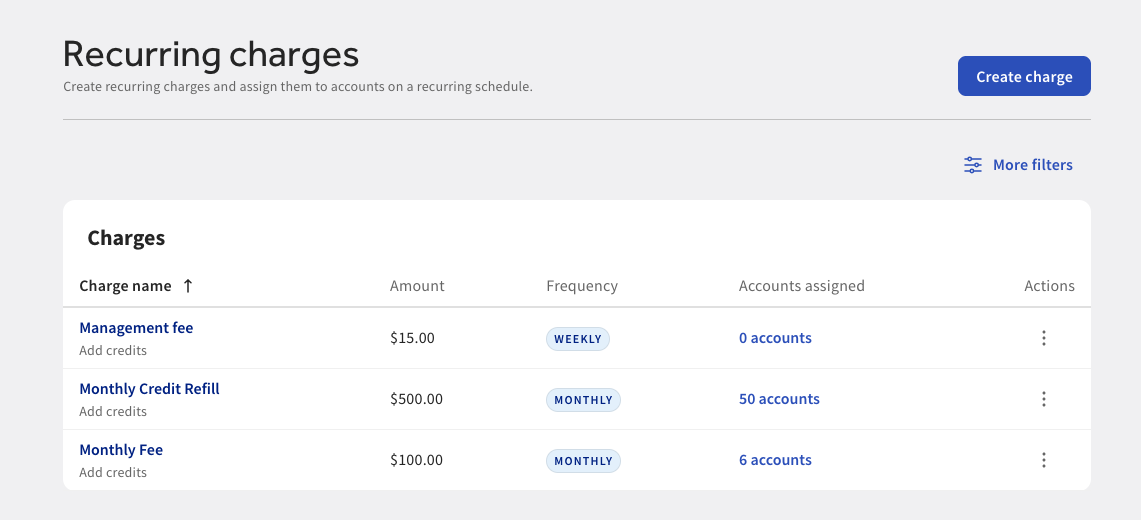
On the Recurring charges page, you can select a charge to edit charge details.
On the Recurring charges page, you can assign a recurring charge to house accounts.
To assign a recurring charge
-
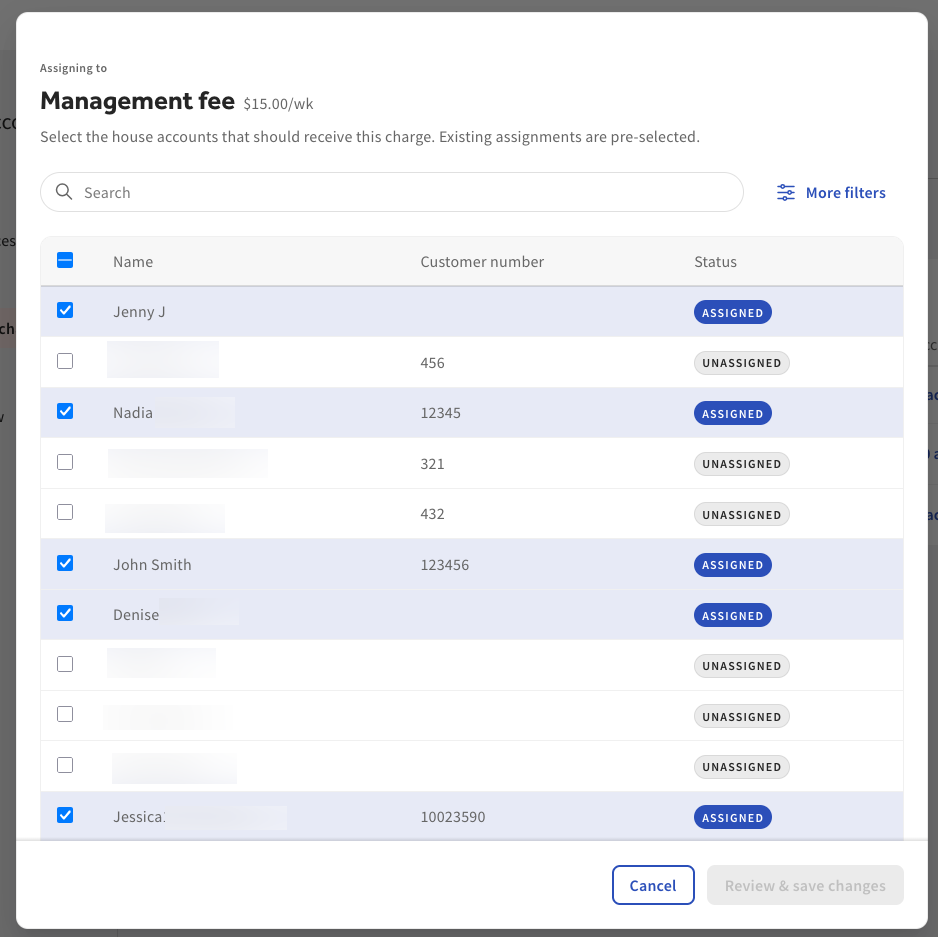
On the Recurring charge page, select the link under the Accounts assigned column. This opens a dialog where you can search for a house account or select house accounts to assign the charge to.
Note
Unassigned house accounts show an UNASSIGNED label.
-
Select the Review & save charges button to apply the charge to the selected house accounts. This opens the Review changes dialog.
-
In the Review changes dialog, select the date when the charge starts.
-
Select the Confirm & apply button. On the Recurring charge page, under the Accounts assigned column, the number of accounts assigned is listed.
House accounts assigned a recurring charge display an UPCOMING RECURRING CHARGE label in the Activity section on the House account profile page.